
Using Trae Skills to Build a Real-World Next.js App
Introduction
AI-powered IDEs are transforming how we write code. These “AI IDEs” integrate large language model assistants into the development workflow, offering intelligent code generation, refactoring, and guidance. Tools like Cursor, GitHub Copilot, and newer entrants like Trae aim to act as AI pair programmers within your editor. Trae, in particular, positions itself as “the real AI engineer” – a VS Code-based IDE with an AI agent (the Builder) that can not only complete code but also understand project context, follow instructions, and even handle entire tasks in SOLO autonomous mode.
One challenge when using AI coding assistants is having to repeat yourself. If you’ve ever had to remind the AI about your coding standards or walk it through the same routine task multiple times, you know how tedious it gets. Trae addresses this with Skills: reusable instruction bundles that serve as on-demand knowledge for the AI. Instead of re-explaining your web design style or data extraction steps every time, you package that know-how once into a Skill – and the agent will automatically apply it whenever needed. In this blog (written as an engineering case study), we’ll explore how Trae’s Skills feature dramatically improved development productivity and consistency for a real Next.js project. We’ll introduce what Skills are, how we set them up in Trae, and how they were used to build a SaaS pricing management app – faster and more reliably than using an AI assistant with ad-hoc prompts alone.

What Are Skills?
Skills in Trae are markdown-based bundles of instructions – essentially “how-to” guides that you feed to the AI agent to extend its capabilities. Each Skill follows the open Agent Skills standard, meaning it’s just a folder (often in your project’s .trae/skills directory) containing a SKILL.md file with some metadata and the instructions/workflows you want to teach the agent. You can think of a Skill’s SKILL.md as a mini manual or playbook that the AI can read on demand, whenever a relevant task comes up. Skills can also include optional scripts or reference files alongside the markdown, but the core is that markdown file describing what the skill does and when to use it.
Because Skills conform to an open standard, they aren’t proprietary to Trae – the same skill files can be used across a growing ecosystem of AI agents. In fact, Vercel’s open registry skills.sh shows thousands of installs of community-made skills, and a CLI tool (npx skills) can install Skills to dozens of AI development tools (Cursor, Claude Code, Windsurf, Trae, etc.) with one command. This open ecosystem means you can leverage a shared library of know-how – everything from React best practices to database migration guides – and have your AI agent follow those procedures exactly. Trae taps into this ecosystem by automatically loading any Skills you install or add to your workspace.
How Skills work in practice: Trae will discover all your Skills at startup by reading just their names and descriptions (this is how it knows when each skill might be relevant). The heavy lifting – the full instructions inside SKILL.md – remain unloaded until needed. When you or the agent initiates a task that matches a skill’s description, Trae’s agent activates that Skill: it pulls in the Skill’s instructions into context and follows them step-by-step. This progressive disclosure design keeps your context window uncluttered and token usage low, unlike always-on instructions. In other words, Skills don’t consume any of the model’s attention until they’re actually needed, whereas traditional global context (or large rule files) would occupy precious prompt tokens continuously. Trae automatically handles this triggering and loading of Skills behind the scenes – so from a developer’s perspective, once a Skill is installed, it “just works” when the situation calls for it.
Skills vs. Rules, Context, and Subagents: It’s helpful to differentiate Skills from other configuration mechanisms in Trae (and AI IDEs in general):
- Rules – Rules in Trae (often Markdown files in
.trae/rulesThese are guidelines that apply universally to your project or workspace. For example, a rule file might define coding style conventions or architectural constraints, and these rules are considered by the agent in every conversation. They’re like non-negotiable ground rules. Unlike Skills, which are optional and triggered only when relevant, rules are usually always present or can be invoked explicitly in chat (via a#RuleNamesyntax) for any task. Use rules for things you always want enforced (e.g., “never commit secrets to git”). But be aware that loading many or very large rules can permanently eat into the context window (“always paid” in terms of token cost), whereas Skills incur no cost until activated (“paid when needed”).
- Context – Here, we mean any project context or reference material you provide to the AI (like relevant code files, documentation, or a large
CONTEXT.md). In Trae, you might share context via the#Contextcommand or through an auto-loaded context. The key difference is that static context is loaded in full regardless of whether every detail is needed, whereas Skills offer a dynamic alternative. For instance, instead of pasting a whole API spec into every prompt, you could encapsulate those usage instructions in a Skill that loads only for API-related tasks. Skills let you keep your always-on context lean – your agent only “pulls a book off the shelf” when it recognizes it needs that specific knowledge.
- Subagents – Some AI IDEs (and Trae via custom agents) allow spawning sub-agents or specialized agents for particular roles. For example, you might have a “Database Agent” with its own prompt and tools, separate from the main coding agent. These subagents operate in isolated contexts and can be invoked for their niche expertise. In practice, subagents are like separate workers: they have their own memory and can handle delegated tasks. However, managing subagents adds complexity – each one might come with its own set of instructions and context that again remain loaded while that subagent is active. Skills, on the other hand, extend the capability of your primary agent without needing to spin up a new AI instance. They change what the agent knows or can do on the fly, whereas switching to a subagent changes who is doing the work (often with a different system prompt or toolset). We found Skills to be a simpler way to handle most needs; we only consider custom subagents if we truly need a separate mode of operation or isolation.
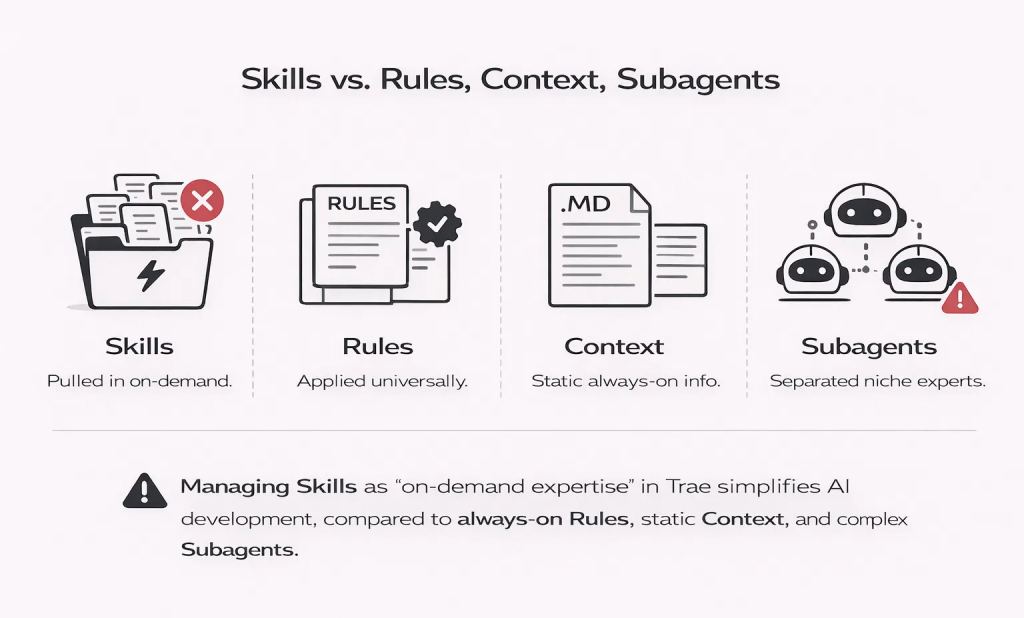
Skills are your AI’s on-demand expertise — unlike Rules, Context, or Subagents, they activate only when needed, keeping your agent smart, efficient, and focused.
In summary, Skills are the “optional expertise” for Trae’s AI agent. They complement your always-on Rules and context by packaging domain-specific or workflow-specific knowledge that the agent can inject on demand. This keeps the agent both smart and efficient.
Project Context: The Pricing IO Next.js App
To ground this in reality, let’s introduce the project where we applied Trae Skills. Pricing IO is a SaaS application built with Next.js, designed for a client to manage their product pricing and usage analytics. The app includes an admin dashboard for revenue metrics, configuration UIs for defining pricing plans and discounts, data visualizations (charts of usage trends, cost projections, etc.), and backend integrations with billing and analytics services. In short, it’s a full-stack web app that touches a lot of typical functionality: forms for data input, pages to display reports, and connectivity to external APIs and databases.
This project had a few characteristics that made it an ideal candidate for using Skills:
- Repeated Patterns – We noticed many parts of the app followed similar patterns. For example, there were several nearly identical pages for different report types (usage by customer, usage by feature, monthly spend, etc.), all following a common layout and coding style. Likewise, whenever we added a new pricing feature, it involved creating a React component, an API route, and some validation logic in a very similar fashion to previous features. These kinds of tasks were perfect to automate with Skills, since we could capture the general pattern once and reuse it.
- Strong Conventions & Domain Rules – The team had defined specific conventions for this project. For instance, all components related to pricing plans had to live under
components/pricing/, and every API route had a matching TypeScript interface in thetypes/folder. We also had naming conventions (e.g., all pricing plan IDs should start withplan_prefix) and other domain-specific rules (like “whenever a price is displayed, use thePriceDisplaycomponent to ensure consistent formatting”). By encoding these rules into a Skill, we ensured the AI would always adhere to them when generating code for this app – without us reminding it every time.
- Similar Workflows – Beyond just code structure, the process for many tasks was repeated. Onboarding a new customer, generating a pricing report, or adding a new tier all involved multiple steps across the stack. For example, “add a new pricing tier” means: update a JSON config, add UI in the admin panel, update the billing logic, and write a couple of tests. We found we could create a “pricing-workflows” Skill that outlines these multi-step procedures. Then, when we ask Trae to implement something like a new tier or discount type, it can follow the checklist from the Skill and not miss any steps.
In essence, Pricing IO had enough recurring patterns and rules that teaching them to our AI assistant once (via Skills) paid off significantly over the project’s development. Next, let’s see how we set up these Skills in Trae.
Setting Up Skills in Trae
Getting started with Skills in Trae was straightforward. Trae is compatible with the open Agent Skills ecosystem, so we could take advantage of both community-contributed Skills and our own custom Skills for this project. Here’s how we set things up:
- Installing Community Skills: We began by importing a set of pre-made skills that could benefit any Next.js project. Using the Vercel CLI, this was as simple as running:
npx skills add vercel-labs/agent-skills. This command fetched the agent-skills repository (a collection of open-source skills) and installed them into Trae. Suddenly, our AI agent had a wealth of best-practice knowledge at its disposal – including skills like “react-best-practices” (with performance optimizations for React/Next.js), “web-design-guidelines” (covering accessibility and UX standards), and others. These skills are automatically loaded by Trae; we didn’t have to do anything special to “activate” them up front – the agent will call on them when relevant tasks arise (for example, if we ask “Review this page for performance issues,” the react-best-practices skill will kick in to audit the code).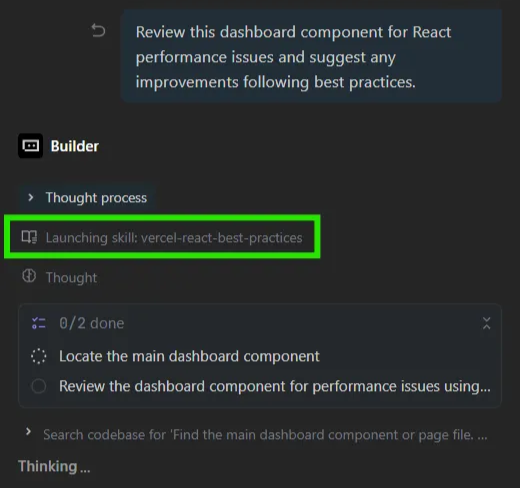
Trae automatically activates thereact-best-practicesskill when a relevant request is made — in this case, reviewing a dashboard component for performance issues.
- Adding Project-Specific Skills: While the generic skills are great, we also created custom Skills unique to the Pricing IO project. Trae’s UI makes this easy – under Settings > Rules & Skills, there’s a Skills section where you can import a local
.mdfile or create a new Skill from scratch.
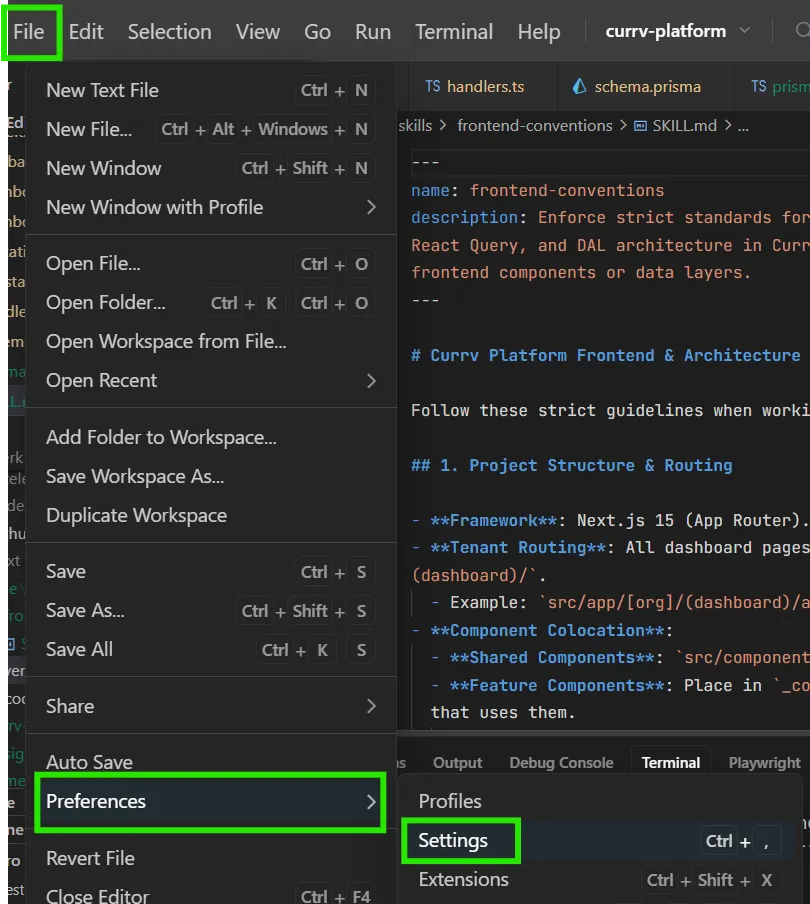
In TRAE editor, go to
File > Preferences > Settings to ensure your workspace is correctly set up and .trae folders are not ignored by version control or extensions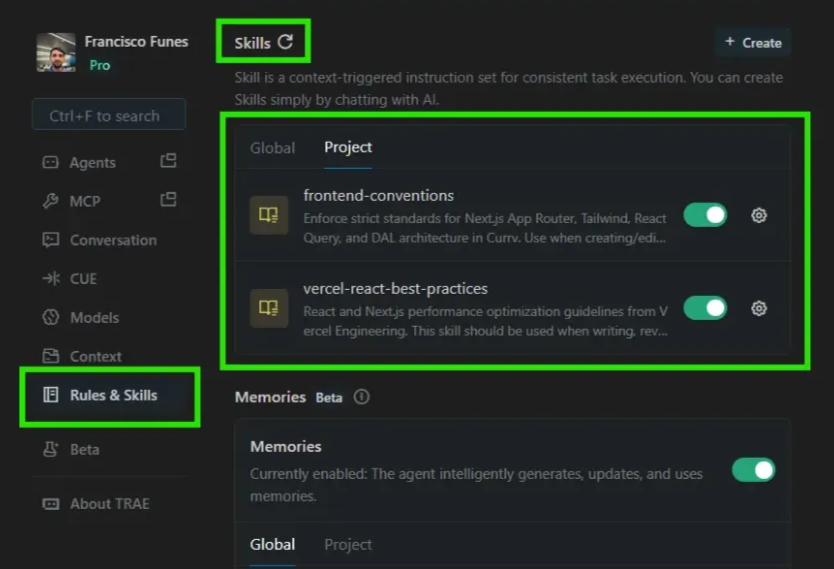
The “Rules & Skills” section in Trae shows both community and custom project skills. From here, we could create or edit Skills like
frontend-conventions and toggle them on or off.
We wrote two key Skills for our project:
- frontend-conventions.md – This skill documented our project’s frontend conventions (folder structure, naming rules, styling guidelines). Essentially, it’s a guide to “how we do front-end in this project.”
- pricing-workflows.md – This skill captured domain workflows and tasks in the pricing domain, like “how to add a new pricing tier” or “steps to generate the quarterly pricing report.” It’s like a cookbook for common tasks in our SaaS.
We authored these as simple markdown files, then added them to Trae. Under the hood, Trae stores custom skills in the workspace (e.g., in a .trae/skills folder), so they persist with the project and auto-load on startup.
Here’s a simplified folder structure snippet showing only where the Skills should go:
.trae/
└── skills/
    ├── frontend-conventions/
    │   └── SKILL.md
    ├── pricing-workflows/
    │   └── SKILL.md
    └── react-best-practices/
        └── SKILL.md
Each subfolder inside .trae/skills/ holds one Skill. The SKILL.md file defines the skill’s metadata and instructions.
- Verifying Skills are Loaded: Once we had community and custom skills in place, we could see them listed in Trae’s Skills panel (with their name and description). Trae automatically read each Skill’s
nameanddescriptionfrontmatter on startup to know when to apply them. For example, our frontend-conventions skill had a description like “Use this skill for tasks involving new UI components or pages to ensure project conventions are followed.” With that, we knew whenever we asked the AI to create a new page or component, it would likely load this skill. Having the skills visible also made it easier to remember what capabilities we had taught the agent.
To illustrate, here’s a snippet from one of our custom Skill files (simplified for brevity):
---
name: frontend-conventions
description: Enforce strict standards for Next.js App Router, Tailwind, React Query, and DAL architecture in Pricing IO. Use when creating/editing frontend components or data layers.
---

# Currv Platform Frontend & Architecture Conventions

Follow these strict guidelines when working on the Currv codebase.

## 1. Project Structure & Routing

- **Framework**: Next.js 15 (App Router).
- **Tenant Routing**: All dashboard pages live under `src/app/[org]/(dashboard)/`.
  - Example: `src/app/[org]/(dashboard)/admin/connectors/page.tsx`
- **Component Colocation**:
  - **Shared Components**: `src/components/ui/` (shadcn/ui primitives).
  - **Feature Components**: Place in `_components/` folder next to the page that uses them.
    - Example: `src/app/[org]/(dashboard)/admin/connectors/_components/connector-card.tsx`

## 2. Naming Conventions

- **Files**: `kebab-case.tsx` (e.g., `connection-modal.tsx`, `page.tsx`).
- **Components**: `PascalCase` (e.g., `export function ConnectionModal() {}`).
- **Hooks**: `PascalCase` filenames and exports (Specific to this project).
  - File: `src/hooks/UseConnectors.ts`
  - Export: `export function UseConnectors() { ... }`

## 3. Data Architecture (The "Currv Stack")

We follow a strict 3-layer architecture for backend data access. **NEVER** write DB queries directly in API routes or Server Actions.

### Layer 1: DTO (Data Transfer Objects)

- **Location**: `src/app/data/[module]/[module].dto.ts`
- **Purpose**: Define Zod schemas for inputs/filters and Types for responses.
- **Naming**: `[Entity]DTO`, `[Entity]FiltersSchema`.

### Layer 2: Policy (RBAC & Authorization)

- **Location**: `src/app/data/[module]/[module].policy.ts`
- **Purpose**: Define permissions using `UserContext`.
- **Pattern**:
  ```typescript
  export function canView[Entity](context: UserContext): boolean {
    // Check roles, context.orgRole, etc.
  }
  ```

### Layer 3: DAL (Data Access Layer)

- **Location**: `src/app/data/[module]/[module].dal.ts`
- **Purpose**: The ONLY place where DB queries (Prisma/Supabase) happen.
- **Pattern**: Class-based, instantiated with `OrganizationContextDTO`.

  ```typescript
  export class ConnectorDAL {
    constructor(private context: OrganizationContextDTO) {}

    private get userContext() {
      // Helper to map organizationId -> orgId for policies
      return { ...this.context, orgId: this.context.organizationId }
    }

    async list(filters: ConnectorFilters) {
      if (!policy.canViewConnectors(this.userContext)) {
        throw new DataAccessError('Unauthorized', 'UNAUTHORIZED')
      }
      // ... DB Query using this.context.organizationId ...
    }
  }
  ```

## 4. Frontend Data Fetching

- **RPC Pattern**: Use the `client` from `@/lib/rpc-client`.
- **React Query**: Wrap RPC calls in custom hooks.
  - **Pattern**:
    ```typescript
    export function UseConnectors(options?: OrganizationScopedOptions) {
      return useQuery({
        queryKey: ['connectors', 'list', options?.organizationId],
        queryFn: () => client.connectors.list(options?.organizationId),
        enabled: !!options?.organizationId,
      })
    }
    ```

## 5. Styling

- **Library**: Tailwind CSS.
- **Class Merging**: Always use `cn()` from `@/lib/utils` for conditional classes.
  ```typescript
  <div className={cn("flex items-center", isError && "text-red-500")}>
  ```
- **Primitives**: Prefer components from `src/components/ui/` (e.g., `Button`, `Card`) over raw HTML elements.

## 6. Auth & RBAC

- **Frontend Protection**: Wrap protected UI sections in `<RBACGuard>`.
  ```typescript
  <RBACGuard resource={RbacResource.DATA_SOURCES} action={RbacAction.EDIT}>
    <Button>Edit Connector</Button>
  </RBACGuard>
  ```
- **Hook**: Use `useRBAC()` to check permissions programmatically.

## 7. State Management

- **Server State**: Use React Query (via custom hooks).
- **URL State**: Prefer search params for filters/pagination (use `useSearchParams`).
- **Global State**: Avoid Context/Zustand unless absolutely necessary for complex UI state that doesn't persist.
Snippet: Excerpt from frontend-conventions.md Skill, defining project-specific guidelines.
As shown, a Skill markdown can be structured with headings, lists, and any information you need. We include a YAML frontmatter at the top with a short name and a description – the description is crucial because Trae uses it to decide when to trigger this skill. The body of the skill then provides detailed steps or rules. In our case, we grouped instructions by category (structure, styling, state management, etc.).
Once these Skills were in place, our Trae AI Builder was essentially upgraded – it had both the general knowledge from community best-practice skills and the specific knowledge about our Pricing IO project from our custom skills. Next, let’s look at how this played out in daily development.
Using Skills in Day-to-Day Development
With Skills set up, using them during development felt natural and, frankly, game-changing. We no longer had to prompt the AI with lengthy reminders or repetitive instructions – the Skills provided a context that Trae’s agent could draw upon whenever relevant. Here are a few concrete scenarios from our day-to-day work where Skills made a difference:
- Scaffolding New Pages & Components: Whenever we needed a new page or React component (which happened frequently as the app grew), we could simply tell Trae something like “Create a new Next.js page for viewing a single customer’s usage details.” In a normal AI IDE, that request might produce a generic page, but thanks to our frontend-conventions skill, Trae knew the exact patterns to follow. It automatically loaded our project conventions and responded with a scaffold that put the file in the correct folder, named the component appropriately, included boilerplate breadcrumbs and headings as per our design guidelines, etc. The agent effectively internalized our template for new pages. We saved time not only on writing boilerplate, but also on code reviews – the generated code was consistently in line with our established standards.
- Rapid Feature Scaffolding with Custom Skills: The Pricing IO app relies heavily on consistent patterns for data management—forms for updating plan settings, uploading usage data, and managing users. Each of these features requires a tight integration between a Next.js frontend form and a backend Server Action or API route. To streamline this, we built a custom skill called frontend-conventions (part of our currv-platform workflow).This skill acts as a blueprint for our entire stack. For example, when we needed to build the User Management & Invitation system, we didn’t just ask for “a form to invite users.” Instead, we instructed Trae to “scaffold the invitation flow,” and the skill immediately kicked in. It guided the generation of a React Hook Form component complete with Zod validation for emails and roles, and simultaneously scaffolded the corresponding Server Action to handle the invite logic securely.Crucially, the skill enforced our specific architectural standards automatically: it ensured the new components used our shared UI library (Shadcn/UI), implemented our standard Toast notification pattern for success/error states, and even wired up the correct RBAC permission checks ( hasPermission ). What used to require a frustrating game of “whack-a-mole”—prompting separately for validation, then for error handling, then for styling—became a single, coherent request. The skill ensured that the form, the validation, and the backend logic were created in unison, production-ready from the first draft.
- Writing Tests & Repeated Logic: We had a rule that every new pricing rule or API endpoint must have at least basic tests. Rather than relying on memory each time, we encoded a testing workflow into the relevant skill. This meant if we used Trae’s SOLO mode or simply asked “Also generate unit tests for this endpoint,” the agent had an exact recipe to follow (e.g., “for pricing calculations, use our
pricing.test.tstemplate and test these scenarios…”). In practice, after implementing a feature, we could say “Write tests for the new pricing tier logic,” and Trae would output a test file that was immediately useful – it knew which helper functions to import, how to structure the tests, etc., based on our skill instructions.
So how do we actually invoke a Skill during development? The beauty is we often didn’t have to do anything special – Trae’s agent detects the need from our natural language prompt. For instance, when I typed, “Implement a page that shows a breakdown of charges for a selected customer, with a chart and a table,” Trae recognized this matched the domain of our frontend conventions (a new page) and likely a reporting workflow. It automatically pulled in both the frontend-conventions skill and parts of the pricing-workflows skill to guide its response. You could literally see in the Trae console that it was loading those skill instructions behind the scenes. The result: the code it generated included the expected folder placement, a placeholder chart component, and even a note to “fetch usage data via the billing API,” which was mentioned in our workflow skill. In another case, after importing a community skill for design best practices, we asked Trae to “audit the UI for accessibility issues” – it responded by launching the web-design-guidelines skill and provided a detailed audit following those 100+ rules automatically (something we’d never list out manually).
Trae allows you to manually trigger skills if needed (for example, through slash commands or by explicitly mentioning the skill name), but in our experience, the agent’s automatic matching worked well. It felt like pair programming with a teammate who already knew our playbook. The big wins we observed were:
- Productivity Boost: Common tasks that would normally require writing multiple prompts or doing tedious setup were handled in one prompt. We weren’t copy-pasting the same examples or reminding the AI of “remember we do X like this” – the Skill had all those details. Especially in Trae’s SOLO mode (which can autonomously plan and build features), having skills meant the AI’s plan was much closer to what a human engineer on our team would do. It didn’t wander off into non-standard approaches as often because the skills kept it on track.
- Consistency and Quality: Because the agent always applied the same rules from our skills, the codebase remained consistent even when different developers (or different AI sessions) generated code. The same Skill that redesigned our UI with a modern look on one page could be applied to all pages for a uniform result. We effectively baked our best practices into the AI. This consistency also built trust – we were less worried that using the AI would introduce mistakes or deviations from spec, since the skills acted like guardrails. In code reviews, we started seeing fewer style or architecture issues because the AI already caught them via skills.
- Mixing Custom Knowledge with General Knowledge: One really powerful aspect was how our project-specific skills interplayed with general knowledge. For example, Trae’s AI inherently “knows” how to write React code (thanks to its model training), and the React-best-practices community skill adds generic performance tips, but combining those with our project skill (e.g., naming conventions, which specific hooks to use) led to solutions that were both optimal in a general sense and tailored to our codebase. Without skills, we’d get either one or the other – generic but not tailored, or tailored (if we painstakingly prompted it) but maybe not following broader best practices. Skills are enabled both at once, consistently.
Finally, it’s worth noting that as our development progressed, we continued to refine our Skills. If we found the agent had made the same mistake twice, we’d consider adding a note in a Skill to prevent it from happening again. This “learning” aspect made the AI feel more integrated with the team over time.
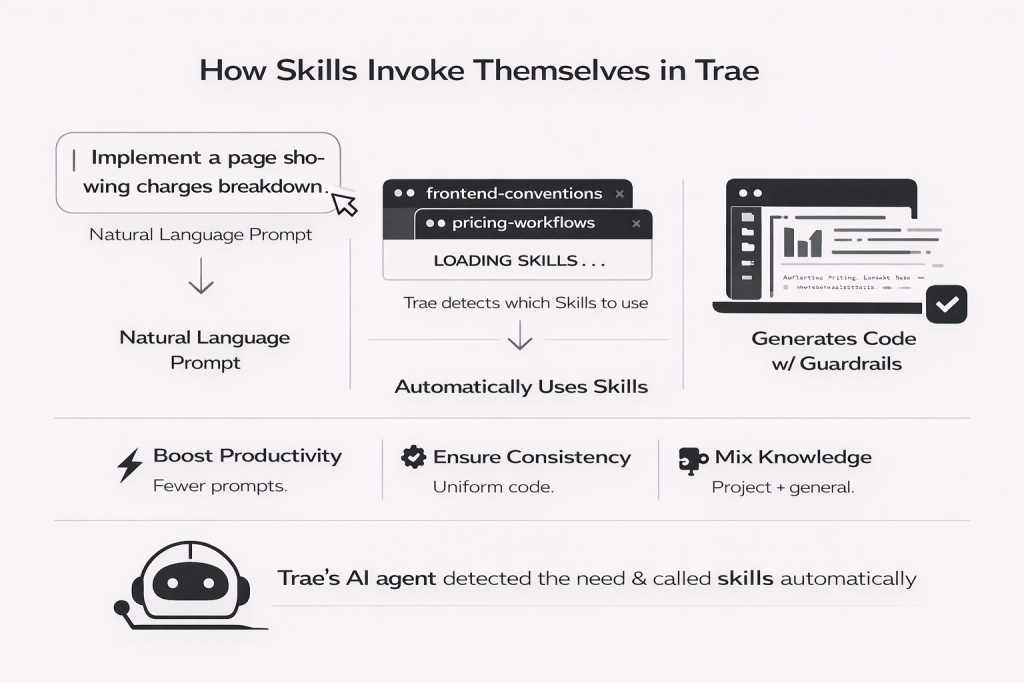
Trae’s agent detects relevant skills from natural prompts and activates them automatically — boosting productivity, ensuring code consistency, and blending project-specific and general best practices seamlessly.
Best Practices and Lessons Learned
Adopting Skills in our workflow taught us several lessons. Here are some tips we’d recommend for anyone looking to leverage Trae Skills, as well as some potential pitfalls to avoid:
- Start Small and Iterate: When creating custom skills, begin with a narrow focus. It’s easier to validate that a skill works when it covers a specific use case or workflow. For example, our first version of pricing-workflows.md only handled generating a monthly report. Once we saw it working, we expanded it to cover other related tasks. Skills are just markdown – easy to edit – so you can refine them as you see patterns in the AI’s output.
- Use Clear Names and Descriptions: The Skill’s
descriptionis essentially the trigger condition. Write it clearly, mentioning when to use the skill in the language the agent will match. For instance, “Use this skill when working with pricing tiers or subscription plans” is better than a vague “Helpful for pricing.” In Trae, the agent only knows to load the skill if the task seems to align with that description. Also, keep thenameshort and indicative of the domain (this shows up in logs/UI, which helps you debug which skills were invoked).
- Combine Global and Project-specific Skills: Don’t hesitate to mix and match skills from the open ecosystem with your own. We found immense value in importing community skills (like React best practices, security checks, etc.) and then layering our project’s unique rules on top. The global skills handled the general concerns, so we didn’t have to duplicate that knowledge, while the project skills handled the specifics. Trae is capable of considering multiple skills if a task is complex – essentially assembling multiple “how-to guides” – so leverage that. It’s like giving the AI a toolbox with both common tools and custom-made tools.
- Keep Skills Focused on Procedure, Not Just Facts: We discovered that Skills are most effective when they include step-by-step guidance or checklists for the agent. Instead of writing a skill as a long essay on a topic, break it into actionable points or sections (as we did with headings like “Project Structure”, “Styling”, etc.). The agent can follow numbered steps or bullet points very well. Think of it as writing instructions for a human junior developer – clear and sequential.
Pitfalls to Avoid:
- Don’t Overload a Single Skill: It might be tempting to throw every related instruction into one giant Skill file (“one skill to rule them all”), but that can backfire. If a Skill tries to cover too much, its description may become so broad that it triggers when not appropriate, or conversely, the sheer length might dilute the key points. We learned to split Skills by topic/workflow. For example, we separated “frontend-conventions” (mostly stylistic and structural rules) from “pricing-workflows” (procedural steps for features), even though they overlap in the domain. This way, each skill stayed concise and laser-focused. Remember, if you find you want those instructions every single time, maybe they should be a Rule instead of a Skill.
- Choose Rules vs Skills Deliberately: As noted earlier, rules are always-on, skills are on-demand. A bad practice is to misuse one for the other – e.g., putting something in a Skill that should really always apply (making it optional when it shouldn’t be). One litmus test we used: “Would we want this guidance no matter what the task is?” If yes, it belongs in a global Rule file (or the system prompt). If no (it’s context-specific), keep it in a Skill. An anti-pattern is creating a Skill that is essentially a universal rule (e.g., a Skill that says “always run tests before committing” – that’s not task-specific). Similarly, don’t try to force Skills to behave like rules via overly broad descriptions. We kept our Skills and Rules clearly separated in Trae: Rules for universal coding standards and “always do X” policies, Skills for conditional workflows and knowledge.
- Update Skills as Code Evolves: A skill can become stale if your codebase changes (say you refactor how pricing logic works, or you adopt a new library). It’s not a set-and-forget documentation – you should treat Skill files as living documentation that needs maintenance. We scheduled quick reviews of our key skills each sprint to ensure they still reflected reality. The good news is it’s usually a few lines to update if something changes (much easier than re-training an AI model!). Keeping skills up to date ensures the AI’s suggestions don’t drift or reintroduce old patterns.
- Avoid Redundancy and Conflicts: If you have multiple skills or rule files, be mindful of overlap. Two skills covering very similar triggers can confuse the agent or cause one to overshadow the other. If we had written a generic “Next.js guidelines” skill, it might overlap with the community React best practices skill. We avoided this by scoping our custom skills to things truly unique to our app, and letting broader skills handle the generic stuff. Also, if a global Rule already says “follow ESLint style guide,” you don’t need to repeat those style points in a Skill. Reduce duplication so that each Skill or Rule has a clear purpose.
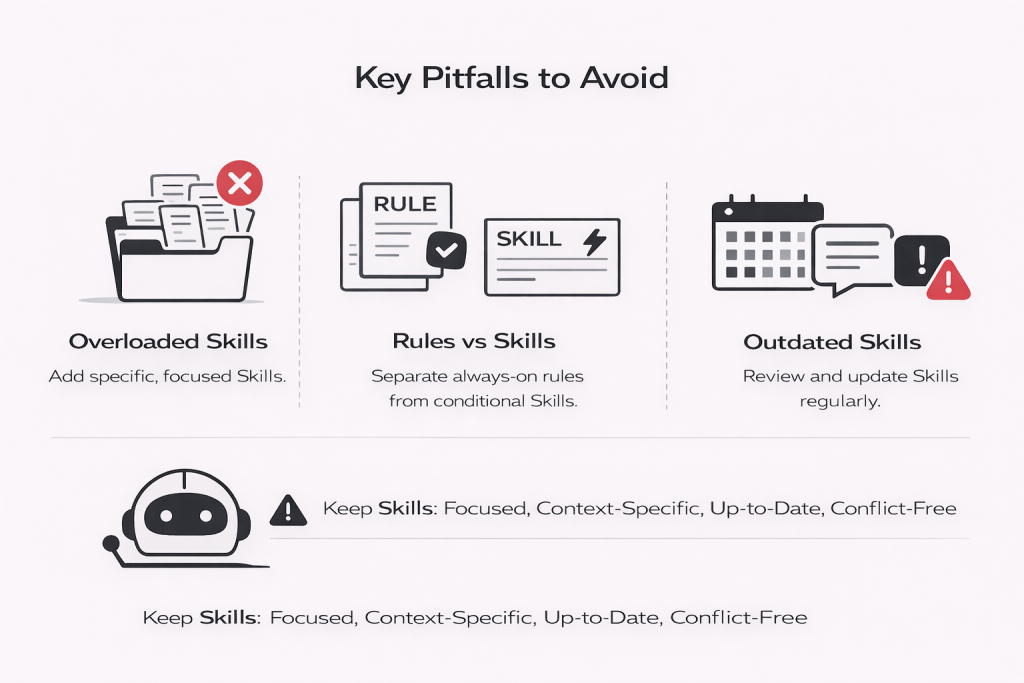
Avoid common mistakes when designing Skills in Trae: keep them focused, properly scoped, regularly updated, and free from overlap with Rules.
By following these practices, we found a sweet spot where Skills significantly augmented our development process without adding confusion. It does take a bit of upfront effort to write down your workflows in SKILL.md files, but the return on that investment was huge for us – the first time we saw Trae autonomously follow a multi-step plan perfectly because we gave it a skill, we were sold.
Conclusion & Next Steps
Our experience building the Pricing IO app with Trae’s Skills feature showcased how powerful “Skill engineering” can be in an AI-assisted development workflow. By capturing reusable knowledge and instructions in Skills, we essentially leveled up our AI pair programmer to be a domain expert in our project. The results were tangible: faster development cycles, fewer mistakes, and a codebase that stayed consistent with our best practices throughout. In many ways, Skills allowed us to scale our team’s know-how – even as new features were built by the AI, they felt as if a veteran developer on the team had implemented them, because the AI was following the veteran’s playbook.
For developers and technical founders evaluating AI IDEs, our case study suggests that it’s worth looking beyond just raw code completion capabilities. Trae’s support for Skills (and the open Agent Skills ecosystem) is a game-changer for maintaining quality and context over long projects. It moves the needle from “the AI can write code” to “the AI understands how we write code.” If you have recurring patterns or specialized domain knowledge in your project, Skills can encode that into the AI’s behavior. And if you don’t yet, you can still benefit from the growing library of community skills (for security, performance, framework-specific tips, etc.) to augment the AI’s general knowledge.
As next steps, we encourage you to explore this for your own projects. You can try out Trae AI by visiting the official site (it has a free tier to get started). Check out the Skills directory (skills.sh) for a searchable index of open skills – you might find pre-built skills for your tech stack or use case. The vercel-labs/agent-skills repository on GitHub is a great place to see how skills are structured and to grab some popular ones. Trae’s documentation on Skills (and their IDE integration) is also helpful for deeper dives into how the system works internally.
Finally, consider writing your own Skills! Start with something small that you find yourself telling the AI repeatedly – formalize it into a markdown Skill. You can even share it with the community (the Skills ecosystem thrives on contributions, much like open-source packages). The team here at Morean has been experimenting with a library of skills internally, and we may open-source a few example Skills from the Pricing IO project as a reference for others. Our journey with Trae Skills has only just begun, but it already feels like an essential part of the AI development toolkit. By investing in Skills, you’re investing in making your AI assistant smarter, more reliable, and truly tailored to your needs – and that’s an investment that pays off in every line of code it helps write.
Additional Resources
- Best Practices for Agent Skills in TRAE (Official Guide) – Walkthrough on creating, importing, and using custom Agent Skills in the Trae IDE.
- TRAE Skills Tutorial: How to Create and Use Agent Skills (Video) – A short tutorial showing how to build and apply Skills.
- TRAE-Skills – Curated Skills Library (GitHub) – Open-source Skills covering frontend, backend, DevOps, and more.
- Agent Skills Explained: An FAQ (Vercel Blog) – In-depth breakdown of what Skills are and how to use them.
- vercel-labs/agent-skills Repository (GitHub) – Vercel’s official Skills repository for reuse across IDEs like Trae and Cursor.
- Ultimate Guide to Trae AI IDE (Medium) – Tips, techniques, and workflows for using Trae productively.
